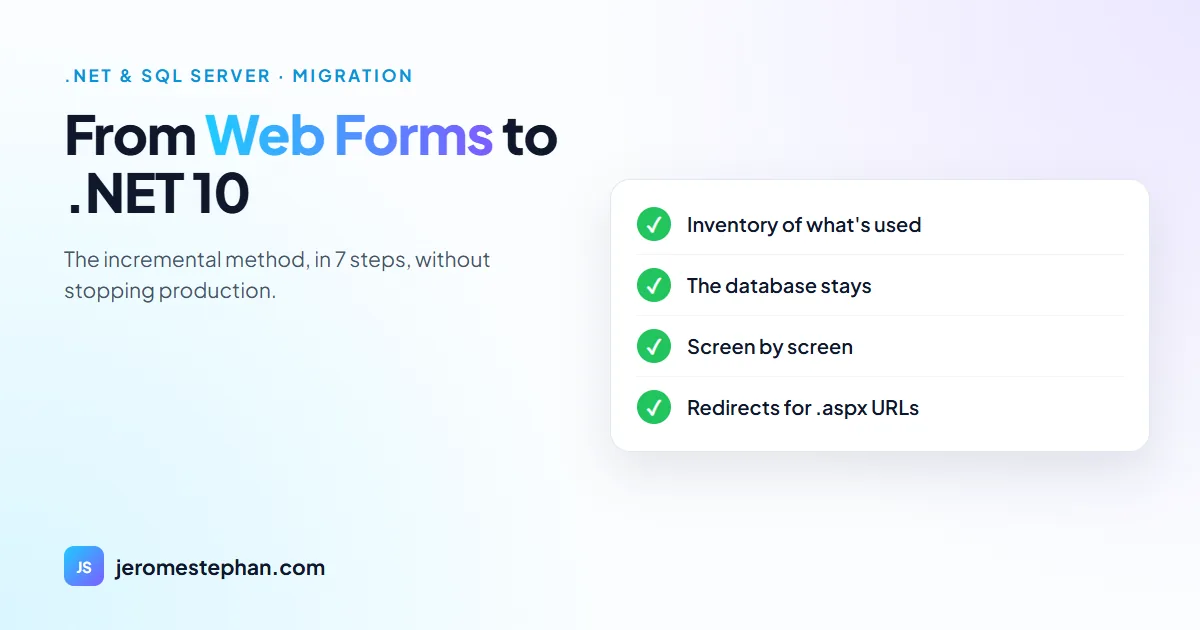
Web Forms doesn't exist in modern .NET, and Microsoft has said it won't be ported. That's why there's no "convert" button: a Web Forms application isn't upgraded, it's migrated. The good news is that you don't have to rebuild it in one go. This is the plan I follow, based on the method recommended in Microsoft's documentation.
First: do you really need to migrate?
Not always. Web Forms stays supported as long as .NET Framework ships with Windows, and Microsoft itself says many applications don't need to move. Migrating makes sense when:
- you can no longer find someone you'd trust to maintain it;
- the site is slow and every change takes too long;
- you need something the old platform doesn't offer: a modern API, a mobile app, Linux hosting;
- the environment is running out: .NET Framework 4.6.2 and Windows Server 2016 both end on 12 January 2027.
The full dates are in .NET 8, .NET 9 and SQL Server 2016 end of support.
Why there's no automatic conversion
A Web Forms page relies on three things ASP.NET Core doesn't have: server controls, ViewState and the page lifecycle. Microsoft's current tool, the GitHub Copilot modernization agent (which replaced the old Upgrade Assistant), includes a Web Forms to Blazor scenario. It helps with the repetitive work, but every screen still has to be reviewed and tested.
The 7-step plan
- Inventory. Pages, third-party controls, services, scheduled tasks and integrations. Above all, what's really used: IIS logs often show that a good share of the pages no longer gets any visits.
- The database stays. SQL Server, the tables and the stored procedures aren't touched at first. Even Entity Framework 6 runs on modern .NET, so data access can wait.
- Pull the logic out of the pages. Calculations and business rules move into class libraries that both applications can use.
- Put the new application in front. This is the incremental approach Microsoft prefers for most production applications: an ASP.NET Core app receives every request and forwards whatever hasn't been migrated to the old one, through the YARP proxy. The System.Web adapters let the two share session and authentication.
- Migrate screen by screen. Microsoft names Blazor as the model closest to Web Forms. I often use Razor Pages for form and list screens: simple, fast and good for SEO.
- Users and sessions. Accounts from the old Membership system migrate with a script, but passwords don't: users have to reset theirs. It's worth warning them beforehand.
- The cutover. When the old application no longer receives anything, it's switched off. The .aspx addresses are redirected one by one to the new ones, so you lose neither users' bookmarks nor your Google rankings. That's what I did with my own site when it left Web Forms.
The traps that come up most often
- Third-party controls (grids, calendars, reports) have no direct equivalent: they have to be replaced.
- BinaryFormatter has been gone since .NET 9. If your session or cache stores objects serialised that way, it has to change.
- WCF services can keep running on CoreWCF, which Microsoft supports.
- Email. Windows Server 2025 no longer includes the SMTP server: if your application sends mail through IIS's local SMTP, it has to move to an external service.
- Configuration leaves web.config for appsettings.json, with secrets kept out of the code.
- ASP.NET Core on .NET Framework (version 2.3) is not a shortcut: it ends on 13 April 2027.
How much better is it?
It depends on the application, and I'm wary of brochure figures. One case documented by Microsoft itself: when the Azure Active Directory gateway moved from .NET Framework 4.6.2 to .NET Core 3.1, CPU cost fell by 50%. In a business application, the most visible gain is usually a different one: changes take days again instead of weeks.
And how long does it take?
A twenty-page site isn't a four-hundred-screen system. That's why I don't give timelines before reading the code: I start with a free audit and deliver a staged plan at a fixed price. The details are on my .NET migration and modernisation page.
Got a .NET or SQL Server application to modernise?
Free audit and a staged plan at a fixed price. I reply in English, French or Spanish.
Ask for my free auditMessage me on WhatsApp